.jpg)

Efficient Computer Repair Solutions for Common Computer Issues
- jrcomputersys
- Apr 13
- 4 min read

When your computer starts acting up, it can disrupt your entire day. From slow performance to unexpected crashes, these issues can be frustrating and time-consuming. Over the years, I have encountered many common computer problems and developed efficient solutions that save time and restore your device’s functionality quickly. In this post, I will share practical tips and actionable advice to help you troubleshoot and fix frequent computer issues effectively.
Identifying the Root Cause of Computer Problems
Before diving into solutions, it is crucial to identify the root cause of the problem. Many computer issues stem from software glitches, hardware malfunctions, or user errors. Here are some steps to help you diagnose the issue:
Observe the symptoms carefully: Is your computer slow, freezing, or showing error messages? Each symptom points to different causes.
Check for recent changes: Did you install new software or hardware? Sometimes updates or new devices cause conflicts.
Run basic diagnostics: Use built-in tools like Task Manager on Windows or Activity Monitor on macOS to check resource usage.
Scan for malware: Viruses and malware can cause erratic behavior and slowdowns.
Inspect hardware connections: Loose cables or faulty peripherals can lead to intermittent problems.
By narrowing down the cause, you can apply the most effective solution without wasting time on unnecessary steps.
Practical Computer Repair Solutions for Performance Issues
Slow computers are one of the most common complaints. Fortunately, there are several efficient ways to boost your system’s speed:
Clean up disk space
Over time, your hard drive fills up with temporary files, caches, and unused programs. Use built-in tools like Disk Cleanup on Windows or Storage Management on macOS to free up space.
Manage startup programs
Many applications launch automatically when your computer boots, slowing down startup time. Disable unnecessary startup programs via Task Manager or System Preferences.
Update software and drivers
Outdated software and drivers can cause compatibility issues and slowdowns. Regularly check for updates to your operating system and hardware drivers.
Increase RAM or upgrade to SSD
If your computer is still slow after software fixes, consider hardware upgrades. Adding more RAM or switching from a traditional hard drive to a solid-state drive (SSD) can dramatically improve performance.
Run malware scans
Malware can consume resources and degrade performance. Use reputable antivirus software to scan and remove threats.
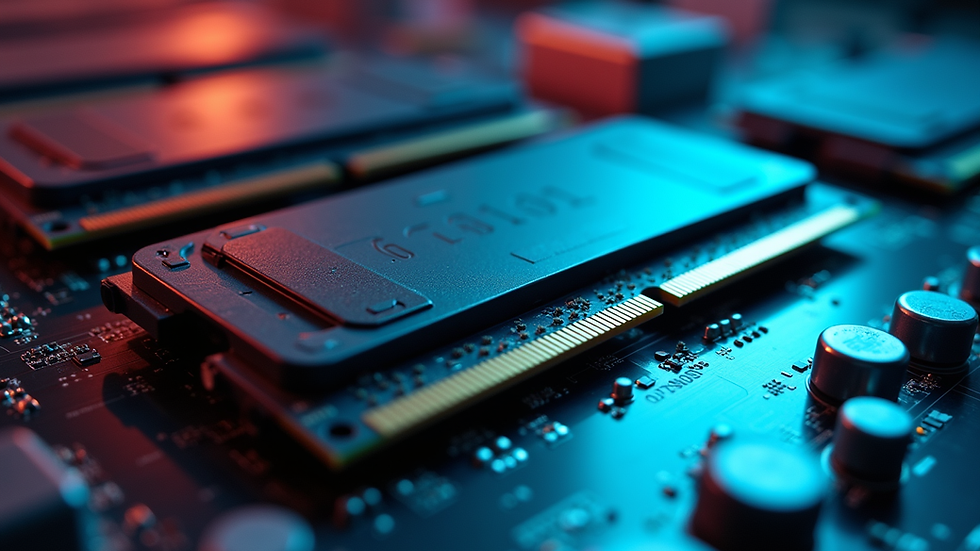
Close-up view of a computer motherboard with RAM modules installed
Troubleshooting Common Hardware Failures
Hardware issues can be tricky but often have straightforward solutions. Here are some common hardware problems and how to address them:
Computer won’t power on
Check the power cable and outlet first. If everything is connected properly, try a different power source or cable. For laptops, ensure the battery is charged or try removing it and powering on with the charger only.
Overheating
Overheating can cause shutdowns or slowdowns. Clean dust from fans and vents regularly. Use a cooling pad for laptops and ensure proper ventilation around desktops.
Peripheral devices not working
If your keyboard, mouse, or printer isn’t recognized, try unplugging and reconnecting the device. Update drivers or test the device on another computer to rule out hardware failure.
Hard drive noises or errors
Clicking or grinding noises from a hard drive often indicate imminent failure. Back up your data immediately and consider replacing the drive.
Display issues
Flickering screens or no display can be caused by loose cables, faulty graphics cards, or driver problems. Check connections and update display drivers.
Efficient Software Fixes for System Errors and Crashes
System errors and crashes can be caused by corrupted files, incompatible software, or malware. Here are some solutions to stabilize your system:
Run system file checkers
On Windows, use the System File Checker (sfc /scannow) to repair corrupted system files. On macOS, use Disk Utility to verify and repair disk permissions.
Uninstall problematic software
If crashes started after installing new software, uninstall it to see if the problem resolves.
Perform system restore or reset
Use System Restore on Windows or Time Machine on macOS to revert your system to a previous stable state.
Update your operating system
OS updates often include bug fixes and security patches that improve stability.
Check event logs
Windows Event Viewer or macOS Console can provide clues about the cause of crashes.

Eye-level view of a computer screen displaying system diagnostics
When to Seek Professional Help
While many issues can be resolved with the right knowledge and tools, some problems require professional intervention. If you experience any of the following, it’s time to consult an expert:
Persistent hardware failures despite troubleshooting
Data loss or hard drive failure
Complex software errors that you cannot resolve
Virus or malware infections that resist removal
Upgrading or replacing critical components
For reliable and efficient computer repair services, it’s best to contact certified technicians who can diagnose and fix problems safely.
Maintaining Your Computer for Long-Term Reliability
Prevention is always better than cure. Regular maintenance can keep your computer running smoothly and extend its lifespan. Here are some tips:
Keep your system updated
Regularly install OS and software updates.
Use antivirus software
Protect your computer from malware and viruses.
Clean hardware periodically
Remove dust and debris from fans, vents, and keyboards.
Backup your data
Use cloud services or external drives to back up important files.
Avoid installing unnecessary software
Only install trusted applications to reduce the risk of conflicts and malware.
By following these practices, you can minimize the chances of encountering common computer issues and enjoy a more reliable computing experience.
I hope these efficient computer repair solutions help you tackle common issues with confidence. Remember, a little troubleshooting and maintenance go a long way in keeping your computer healthy and productive.


Comments